It will focus on the candidate regions independently. Listening to the deleted allows you to check consonants and voice details before you intervene further.
VOCALCUT 0.4.0
Product manual and product tag, edition of 4 November 2026
Voice cleaning plugin that learns from the DAW track and recognizes words and possible breaths locally. Your priority is to keep your voice when the analysis is uncertain.
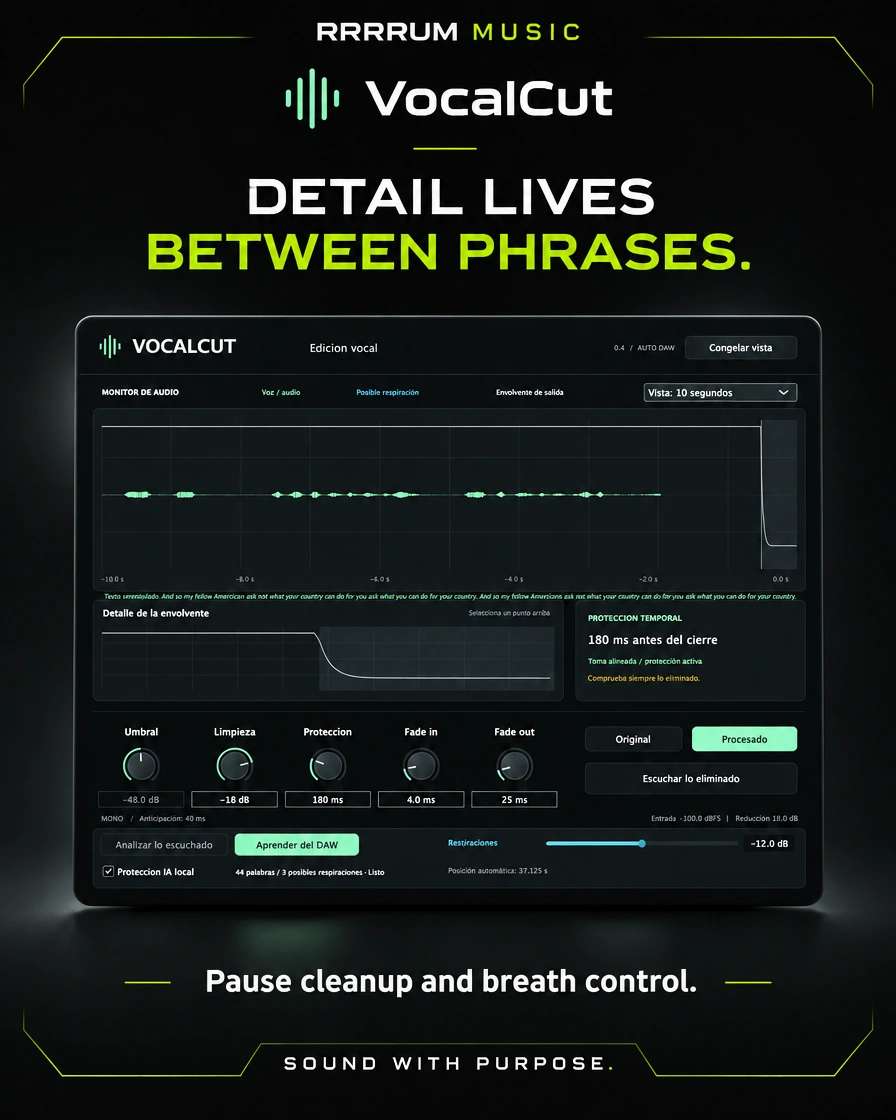
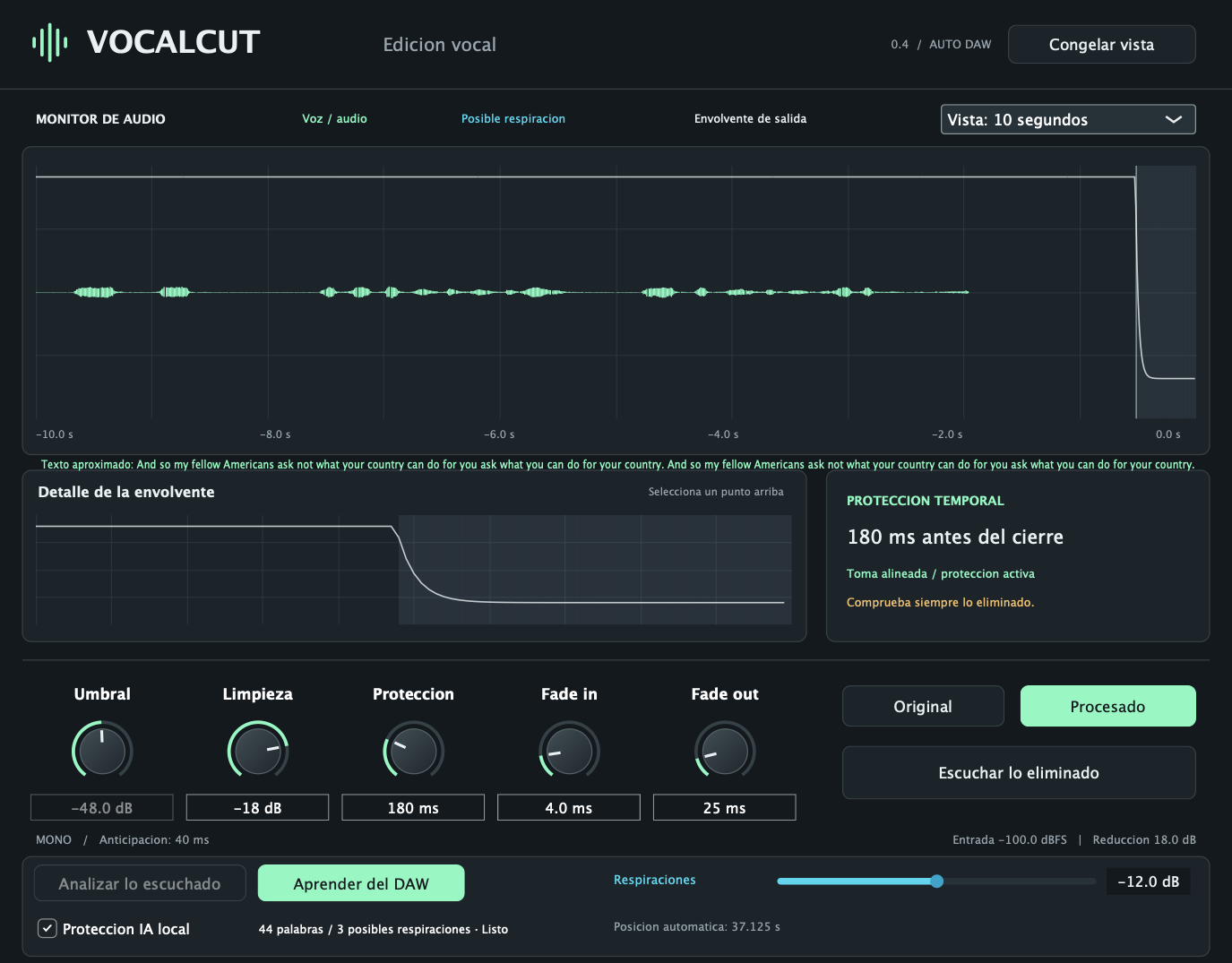
Implemented interface: capture the actual editor with a test signal. It's not the initial conceptual model or a user recording.
Channel formats
macOS 12+; Apple Silicon and Intel AU and VST3 Mono and Linked Stereo
Flow: first pass to learn; stop and wait; second reproduction to apply cleaning. Save a stretch of up to 120 seconds per instance.
Source page 2
Installation and first take
Automatic capture and positioning, no matter how files or the clip are aligned by hand.
1. Installing
Turn off the audio program completely. Open VocalCut-0.4.0-macOS.pkg and follow the installer. Reopen your DAW and search for VocalCut among the effects. If you keep an earlier version, browse the plugins again. The package has no notarization or Apple Developer ID signature.
2. Learn the track
• Insert VocalCut on the vocal track, preferably before reverb and delay.
• Leave active DAW Learning and local AI Protection.
• Play back the stretch you want to learn. The screen will show you listening for a lead and record your position.
• Stop the reproduction. If the DAW stops sending audio to the plugin when it stops, the capture closes after approximately 1.5 seconds of inactivity.
• Wait till I finish the analysis of words and possible breaths. You can also tap Listen to the current capture.
• Re-replicate the shot to apply the cleaning. It is not necessary to select a file or to write its position.
3. Adjust and listen
Respiration starts at 0 dB: detects without attenuation. Try -3 or -6 dB and activate Listening to the deleted. If you hear consonants or parts of voice, reduce the intervention and increase protection. Compare Original and Processed.
4. Exporting
Wait for the analysis to be completed before exporting or freezing the trail. Offline exporting does not start learning. If there's no matching analysis, the AI mode keeps the audio. The processing latency is 40 ms and communicates to the host.
Source page 3
Interface controls
What changes every control of the version implemented.
Control function
Learn from the DAW Activate or disable automatic track capture.
Analyze the hearing Finish the current capture to begin your analysis.
Local AI Protection uses recognition and conservative rules. When you disable it, it returns to the detector by level.
Threshold Available in mode by level. It determines the openness of the detector; it does not control word recognition.
Clears attenuation of almost silent breaks considered safe. You can leave noises without reducing them.
Breaths: separate attenuation for regions identified as possible breaths. Default: 0 dB.
Additional protection Wait inside a zone before allowing its reduction.
Fade in / Fade out Softened opening and exponential closure of the envelope.
Original/Processed Aligned listening comparison.
Listening to the deleted play the difference between the original and the result. Original takes priority if it's activated.
Freeze view / View Freeze only the screen. Select a story of 2, 5 or 10 seconds.
Graphic / Detail Click to inspect a point. It does not allow for manual editing of word boundaries or regions.
How to read the screen
Green: audio present. Blue: possible breathing. Grey: attenuation. White: outlet wrapper. The transcription and the colours are approximate; they do not certify that the recognition is correct. The graphic has a resolution of approximately 10 ms.
Source page 4
Sessions, limits and assistance
What is saved, what is proven and how to solve the usual cases.
Capture and recovery
Each capture that requires analysis is saved as WAV in ~/Library/VocalCut/Captures. It's not being sent to the Internet. The session retains the route and its position, and re-analyses it when re-opening if available. Catches are not automatically eliminated. If you erase them or change equipment, play the shot to re-learn it.
Limits of this version
A catch of up to 120 seconds per instance is retained; a new catch replaces the previous one. A loop jump or loop loop closes the previous segment. There's no immediate recognition at first hearing or an unlimited map of the entire session. The DAW must communicate its reproduction and position.
No model guarantees to keep all the syllables in any recording. Singing, whispering, noise, and overlapping voices can make analysis difficult. Uncertain events are preserved. The version does not reconstruct deleted voice or implement the editable regions of the initial model.
Situation What to do
He doesn't start learning Active Learning from DAW and local AI Protection. It is played from the host's transport; checking monitored audio does not replace that transport.
Save all the audio. Wait for the analysis to be finished and repeat the stretch. If you moved or changed the shot, let me learn again.
They're short of breath. Screening is conservative. Check candidates and avoid increasing the reduction to force detections.
I want to recover space and wipe out local catches you no longer need. The affected sessions will have to be re-learned.
Scope of the tests
Capture, automatic positioning, recovery, jumps, offline and mono/stereo export were tested. The actual AU was loaded onto a test host with native Audio Unit callbacks. The evaluated voice sections were kept unchanged. This does not equate to a direct validation within Logic or Studio One or a general rate of accuracy.
Uninstall: remove VocalCut.component and VocalCt.vst3 from /Library/Audio/Plug-Ins; the model is in /Librory/Application Support/VocalCut Personal catches are disposed of separately.
 ALPHA CENTAURIP L U G I N S